How to Fix a Phone Speaker: 9 Fixes From Settings to Water Ejection
By WaterEject Team
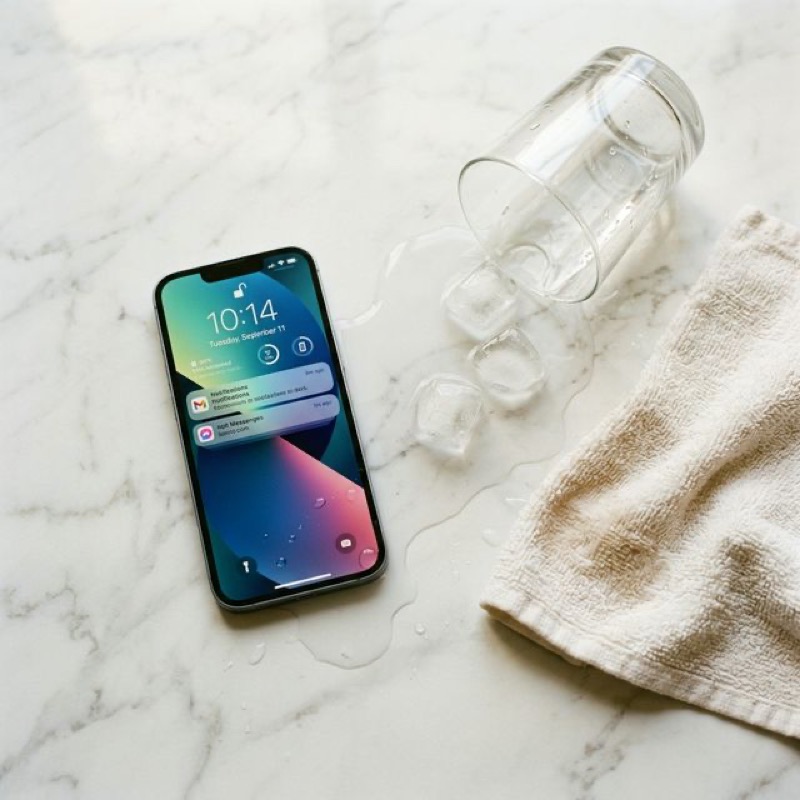
By WaterEject Team
If your phone speaker is not working, sounds muffled, crackles, or is suddenly too quiet, the cause is usually one of three things: a setting, a software glitch, or something physically blocking the speaker grille, most often water or lint. Real hardware failure is less common than it feels in the moment, so the smart way to fix a phone speaker is to work from the cheapest, fastest checks toward the more involved ones.
This guide is a diagnostic ladder. Start at fix 1 and stop as soon as the sound is back. Each step either solves the problem or rules out a cause, so by the end you will know whether you need a cleaning cycle or a repair shop. It works for iPhone, Samsung Galaxy, Google Pixel, and other Android phones.
Phones keep separate volume levels for ringtones, notifications, calls, and media. Turning up the ringer does not turn up a video, and the reverse is also true. Open something that plays audio, then press the volume-up button while it plays so you are adjusting media volume.
A very common "broken speaker" is really audio going somewhere else: earbuds in a case, a car stereo, a smartwatch, or a Bluetooth speaker in another room. Turn Bluetooth off for a moment and play audio again.
A crashed audio service or a stuck app can silence the speaker until the system restarts. Power the phone fully off, wait about 30 seconds, and turn it back on. This takes a minute and clears a surprising number of sound problems, especially ones that appeared suddenly with no water or drop involved.
Audio bugs do occasionally ship in system updates and get fixed in the next one. Check for an update in Settings (General > Software Update on iPhone, Software update or System update on Android) and update the apps where the sound fails. If the problem started right after an update, a follow-up patch is often the real fix.
Before cleaning anything, figure out which speaker is affected and how. Most phones have a bottom speaker and an earpiece speaker at the top that also plays media in stereo. Play a song or video you know well with the case removed and listen to each end of the phone.
Pocket lint, dust, and skin oil build up in speaker holes over months and slowly make a phone sound quieter. Cleaning the grille is safe if you stay gentle:
If the phone got wet from rain, a sink, a shower, or a pool, water held in the speaker grille by surface tension is the most likely reason the sound is muffled or crackly. A low-frequency tone makes the speaker diaphragm move with larger strokes, which helps push those droplets out. WaterEject plays a calibrated tone in the low range (around 165 Hz) for exactly this.
Want just the tone? The water eject sound page plays it directly. For a full walkthrough by phone model, see the water ejection guide, and if the phone has only just come out of the water, follow the emergency water removal guide first. The physics are explained in how sound removes water from speakers.
Cleaning only counts if the sound actually comes back. When a WaterEject cycle finishes, the tool now plays a short test sound covering low, mid, and high tones and asks how it sounds. Listen closely: a healthy speaker sounds crisp, not muffled or crackly.
If sound works in some places but not others, an app or a changed setting may be interfering. On Android, safe mode starts the phone with downloaded apps disabled: press and hold the power button, then press and hold Power off until the Safe mode option appears. If the speaker works normally in safe mode, a recently installed app is the likely cause. Restart to leave safe mode.
iPhone has no user-facing safe mode, but Settings > General > Transfer or Reset iPhone > Reset > Reset All Settings returns system settings to defaults without deleting your photos or apps. Use it as a last software step before considering a repair.
Galaxy phones use the same physics as any other phone, but a few Samsung-specific details help:
For Google Pixel and other Android phones, the sound settings live under Settings > Sound & vibration, and the water ejection steps are identical. The WaterEject Android page covers Android-specific tips.
If your AirPods or earbuds are the ones that sound muffled, see the separate AirPods water damage guide.
Sound-based cleaning and settings fixes cannot repair a damaged part. Book a repair if you notice any of these:
If you are unsure whether a cleaning app can help in your case, do speaker cleaner apps work? breaks down what they can and cannot fix.
Most often it is media volume, silent or Do Not Disturb mode, or audio routed to a Bluetooth device. Next come software glitches, then water or debris in the grille, and finally hardware failure. Check them in that order.
Remove the case, brush the grille gently with a soft dry brush, then run a low-frequency water eject cycle with the speaker facing down at high volume. Test the sound and repeat two or three cycles if it is improving.
Crackling that started after water usually clears once the water is out and the phone has dried. Crackling at every volume, days later, with a clean grille, points to a damaged speaker that needs repair.
Stop charging, remove the case, wipe the phone, and hold the bottom speaker facing down. Set media volume to maximum, run a WaterEject cycle, test the sound, and repeat if it is still muffled. Rotate the phone to clear the earpiece speaker too.
When there is no sound after the settings checks and drying, the speaker crackles or buzzes at every volume, it rattles after a drop, you see visible damage or corrosion, or the phone was in saltwater or other liquids.
Speaker muffled after water? Open the WaterEject tool, point the speaker down, run a cycle, and use the built-in test sound to check the result. Or install the app for more cleaning modes.